How to add a chat widget to WordPress
Two ways to put an AI chat widget on any WordPress site — a plugin that builds the assistant for you, or a one-line embed. Screenshots for every step.
Adding a chat widget to WordPress takes about five minutes, and you don't need to touch code. This guide covers the two ways to do it — the Webaaty plugin, which builds an AI assistant from your website automatically, and the manual embed for when you want direct control — plus how to check it's working and what to do when it isn't.
What you'll need
- A WordPress site you can administer (you'll need the Plugins menu, so an Administrator role on a self-hosted/WordPress.com Business site)
- Five minutes
That's genuinely it. No API keys, no code, no credit card — the free plan is enough to go live.
Short on time? Create your free assistant and it does the setup below for you — no card needed.
Option 1 — the Webaaty plugin (recommended)
The plugin doesn't just embed a widget: it reads your site, builds an assistant trained on your pages, and lets you preview it before it goes live.
Install the plugin
In your WordPress dashboard, go to Plugins → Add New Plugin and search for Webaaty. Click Install Now, then Activate.
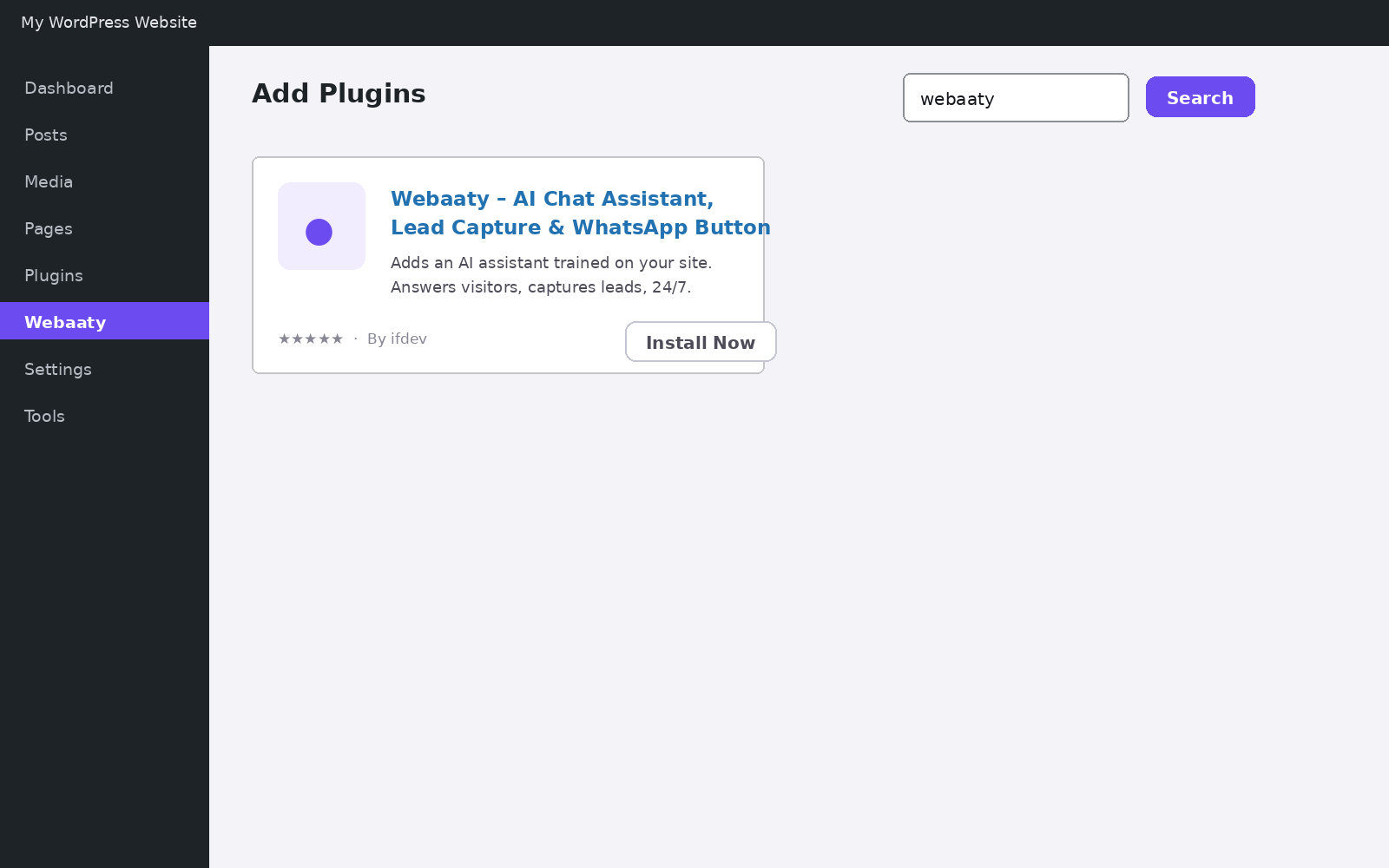
After activation, Webaaty appears as its own item in the left sidebar.
Scan your website
Open Webaaty from the sidebar. Your site's address is already filled in — click Scan my website.
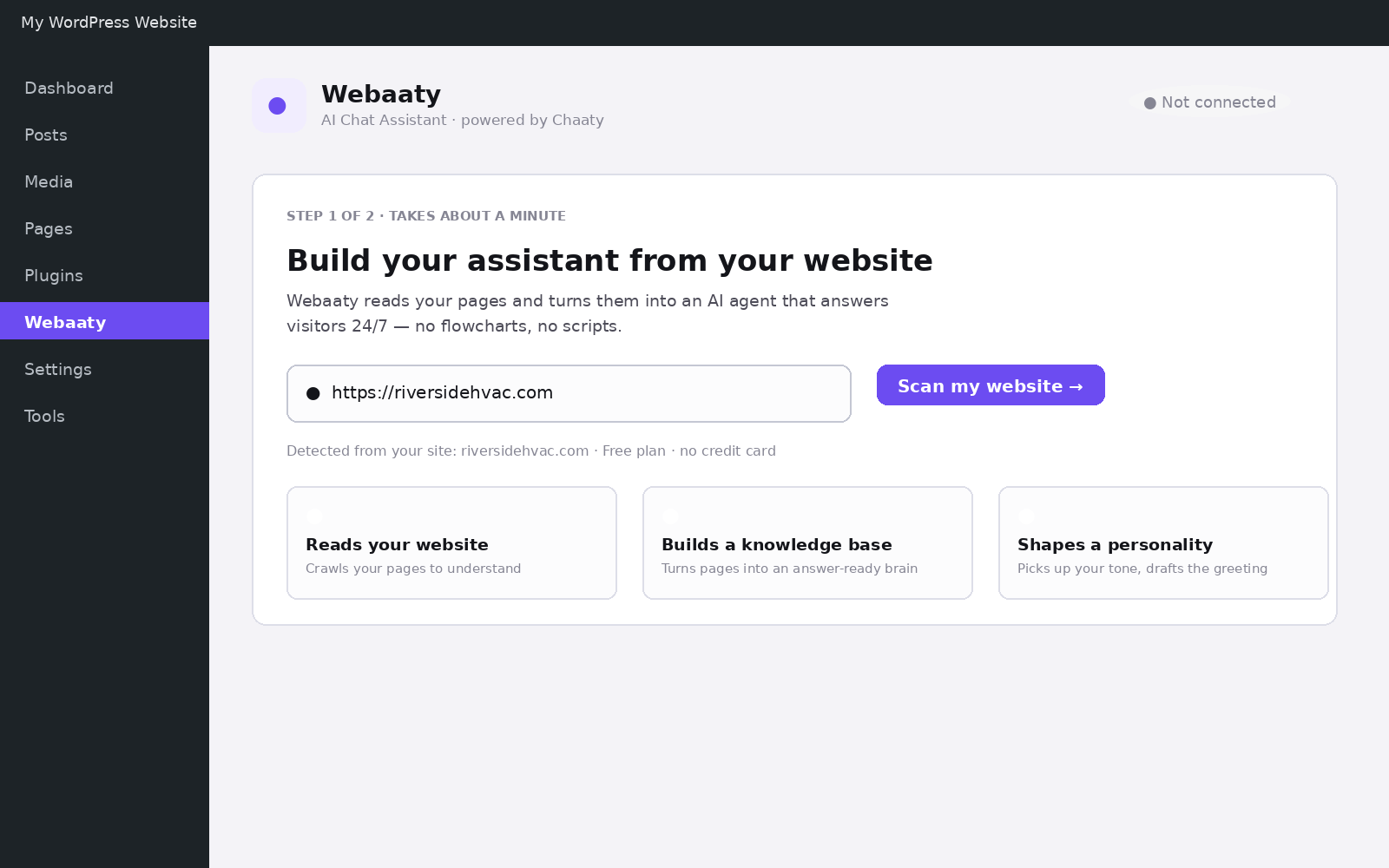
The scan reads your public pages and builds a working assistant from them: what your business does, your services, your tone. It usually takes under a minute.
Try it before it goes live
You'll get a live preview of your assistant, already answering questions about your business. Ask it something a customer would ask — "how much does a service call cost?", "are you open Saturdays?" — and watch what it says.
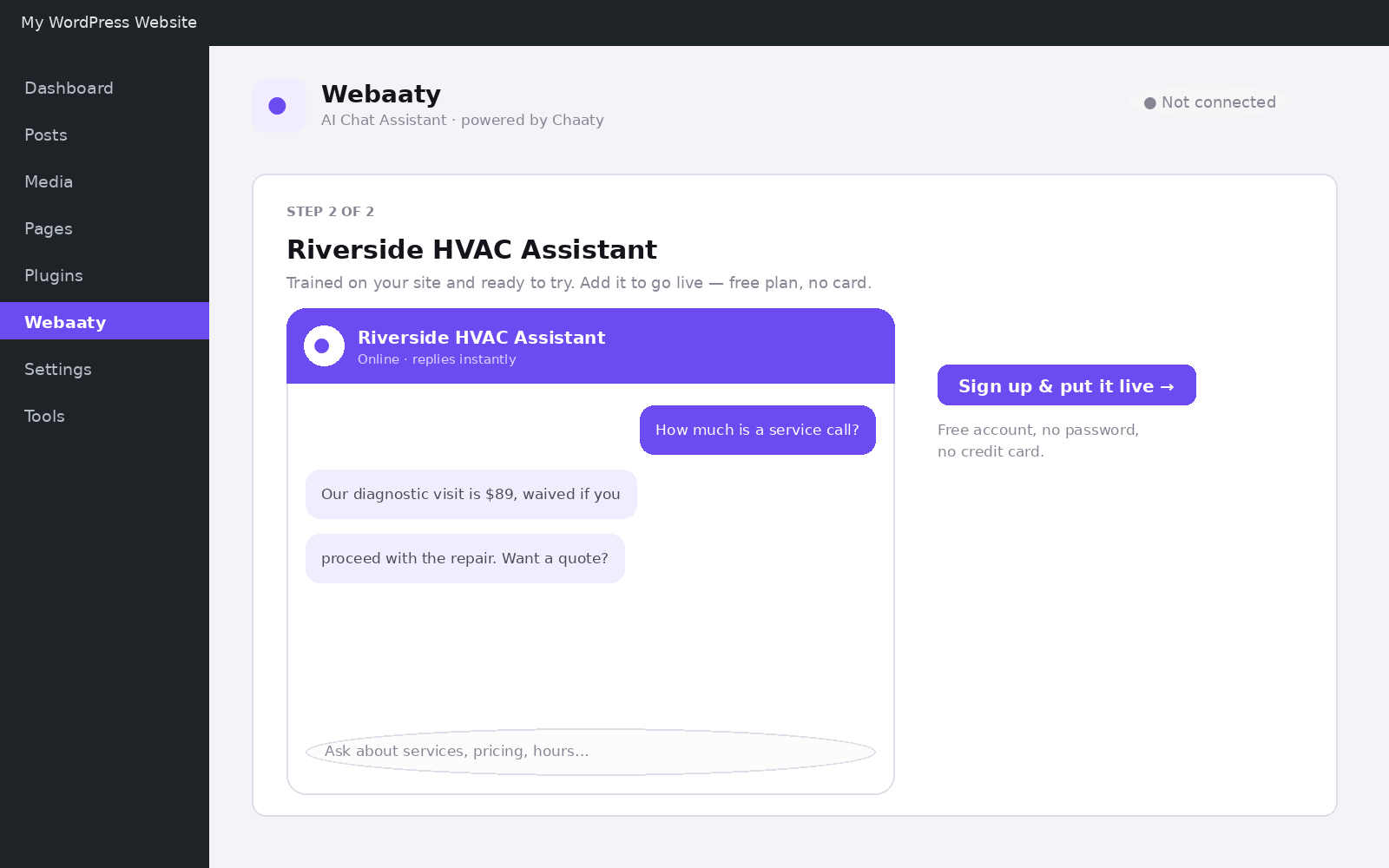
Put it live
Click Sign up & put it live, enter your name and email, and you're done — no password, no card. The widget appears on your site straight away, and the Webaaty screen in WordPress switches to an overview of conversations, leads and usage.
Option 2 — the one-line embed
Already built an assistant in the Chaaty dashboard, or prefer not to add a plugin? Embed it directly.
In your Chaaty dashboard, open your chatbot and copy the embed code. It looks like this:
<script src="https://chaaty.io/widget/embed.js" data-chatbot-id="YOUR-CHATBOT-ID" defer></script>Then add it to WordPress either way:
- Site-wide (recommended): in your theme, Appearance → Theme File Editor is risky — instead use a header/footer snippet plugin (like WPCode) and paste the script into the footer.
- Single page: edit the page, add a Custom HTML block, and paste the script there.
Check it's working
Open your site in a private/incognito window (so you're not looking at a cached page). Within a couple of seconds you should see the launcher in the corner you chose.
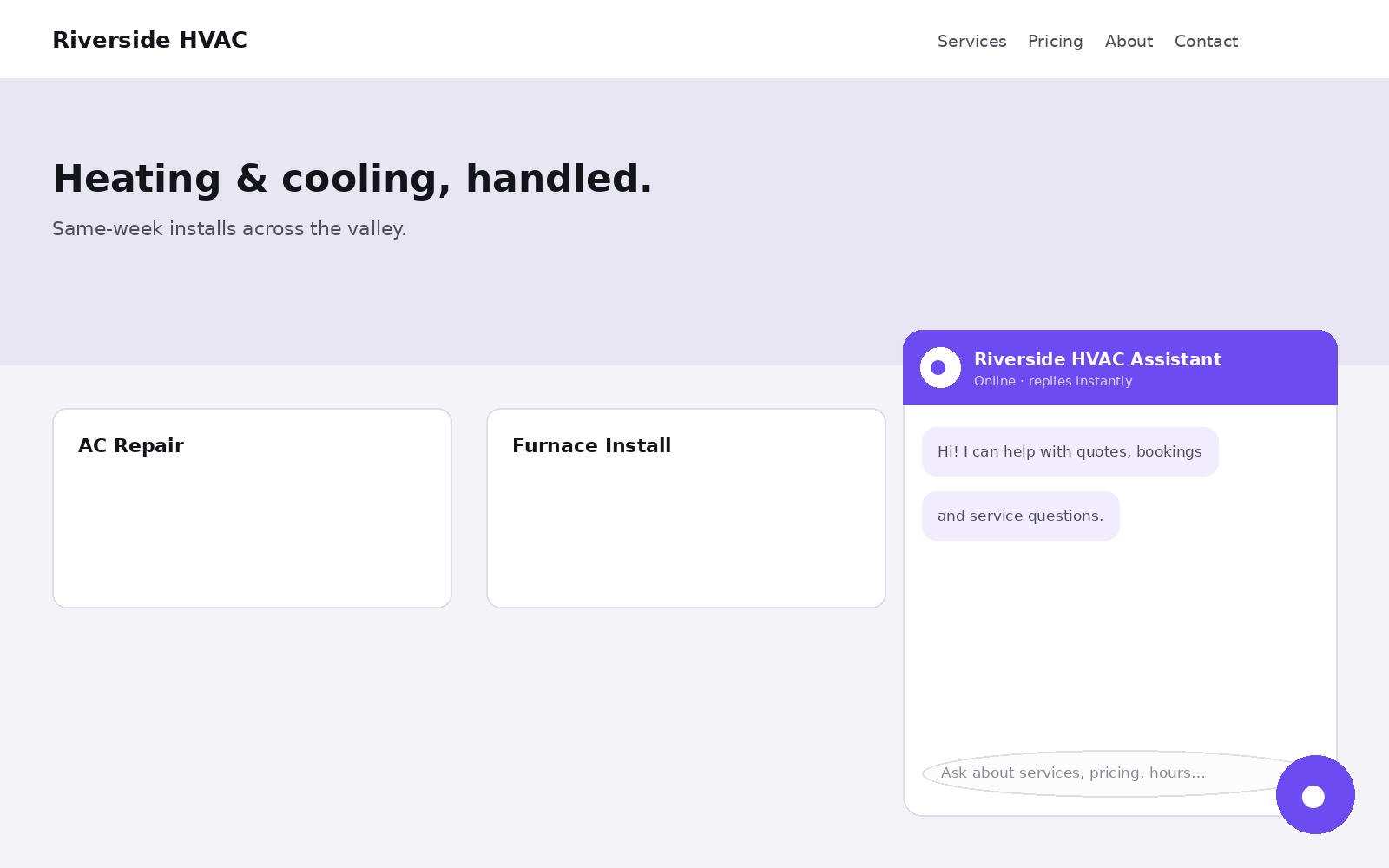
Send it a real question. If it answers with your business's details, you're live.
If the widget doesn't show
The usual suspects, in order of likelihood:
- Caching — purge your page cache (and any CDN cache) after installing.
- Consent plugins — some cookie-consent tools block third-party scripts until the visitor accepts.
- The assistant is paused — in Webaaty, check the Show on site toggle on the Overview screen.
- Page targeting — if you've told it to hide on specific pages, check you're not testing on one of them.
The full checklist with fixes is in Widget not showing up? Troubleshooting.
What to set up next
Now that it's live, three things multiply its value: train it on questions your site doesn't answer, turn on lead capture so conversations leave you an email address, and add a WhatsApp button so visitors can reach you on the channel they already use.
Put an AI assistant on your site today
Chaaty reads your website and builds a working assistant in about a minute. Free plan, no credit card.