How to add an AI chatbot to your website (any platform)
One script tag puts an AI assistant on any website — WordPress, Shopify, Webflow, custom code. Here's the universal method plus platform notes.
Every website platform can run an AI chatbot, because the widget is just one script tag. This guide covers the universal method, then the quirks of the common platforms.
The universal method
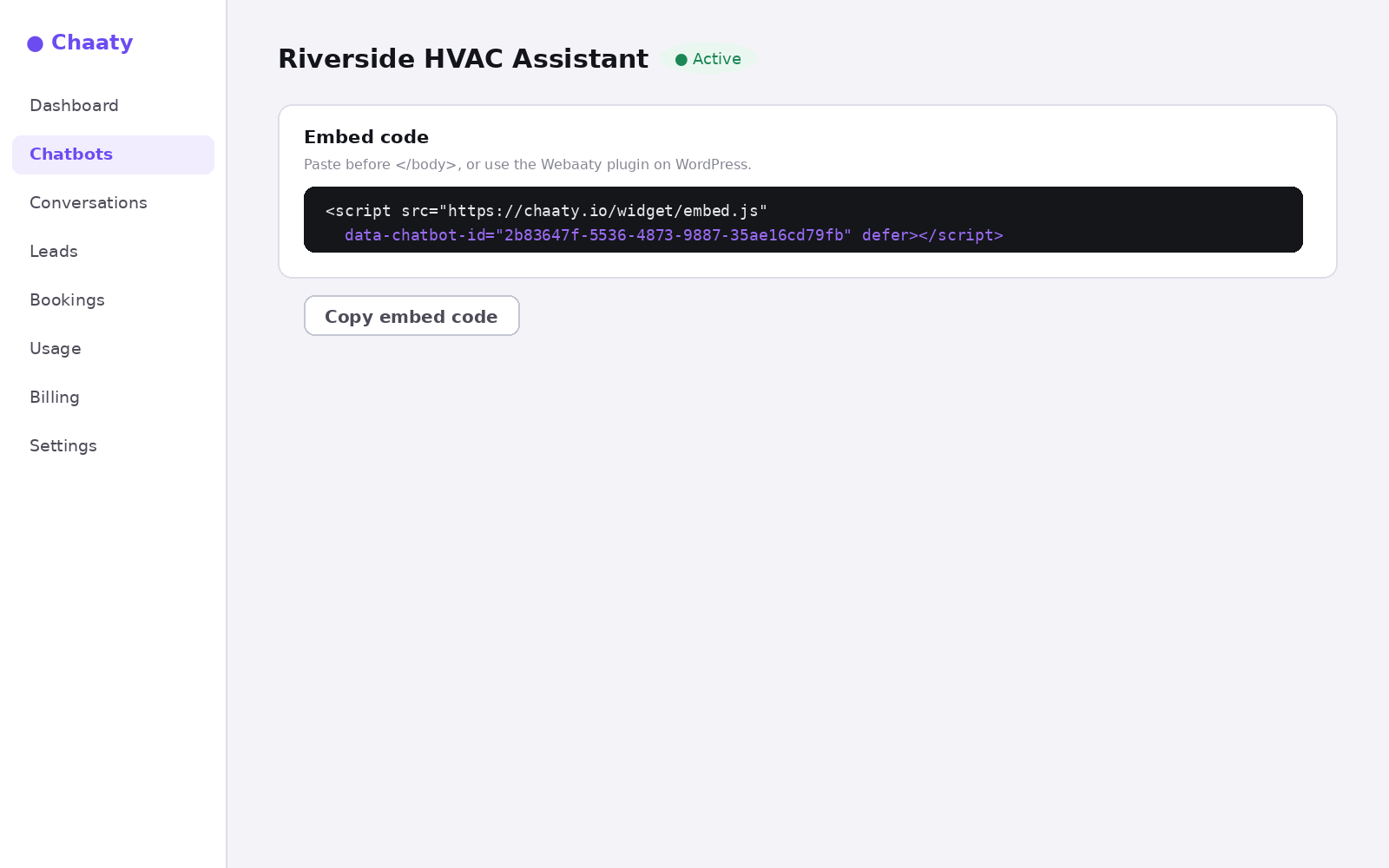
Create your assistant at chaaty.io — it's built from your website automatically. Then grab the embed code from your dashboard:
<script src="https://chaaty.io/widget/embed.js" data-chatbot-id="YOUR-CHATBOT-ID" defer></script>Paste it before the closing </body> tag of your site. That's the whole install.
Short on time? Create your free assistant and it does the setup below for you — no card needed.
Platform notes
- WordPress — skip the code entirely and use the Webaaty plugin; it builds and connects the assistant for you.
- Shopify — Online Store → Themes → Edit code →
theme.liquid, paste before</body>. - Squarespace — Settings → Advanced → Code Injection → Footer.
- Webflow — Project Settings → Custom Code → Footer Code.
- Wix — Settings → Custom Code, add to Body — end, all pages.
- Custom site — paste it in your base template or layout component.
Check it worked
Open your site in a private window. The launcher appears within a couple of seconds:
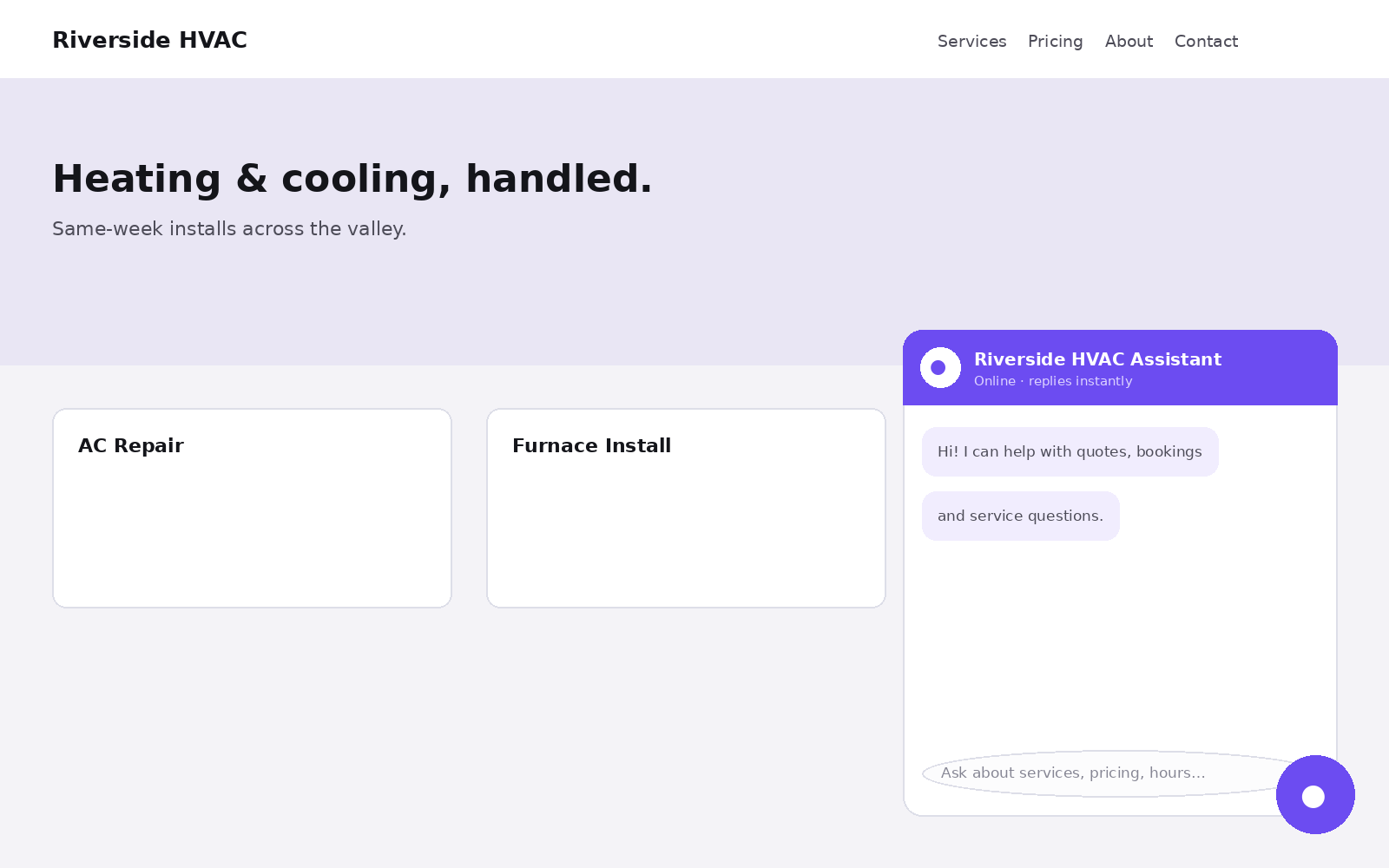
If nothing shows, it's nearly always caching or a script optimizer — the troubleshooting checklist walks the fixes in order.
Put an AI assistant on your site today
Chaaty reads your website and builds a working assistant in about a minute. Free plan, no credit card.